![Logo-1.png]](https://support.seamlesshr.com/hs-fs/hubfs/Logo-1.png?height=25&name=Logo-1.png)
What’s New:
Admins can now conduct salary reviews directly from the Promotions & Salary Reviews module. The feature covers everything from initiating a review, selecting its scope and method, applying increases, approving the review through the configured workflow, and notifying employees once the review is complete. Here is a breakdown of how it works:
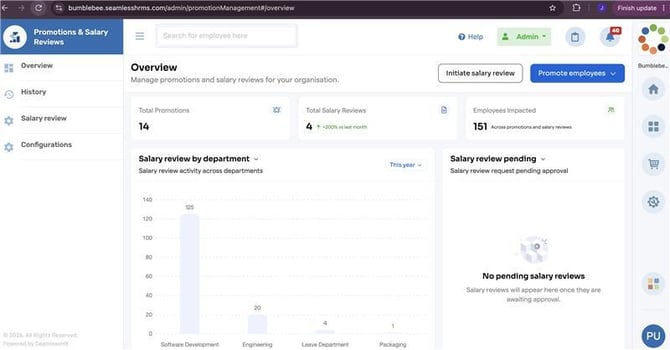
A. Overview Dashboard:The overview dashboard shows promotion and salary review totals, employees impacted, reviews by department, and pending reviews. Admins can also initiate salary reviews or promote employees here.
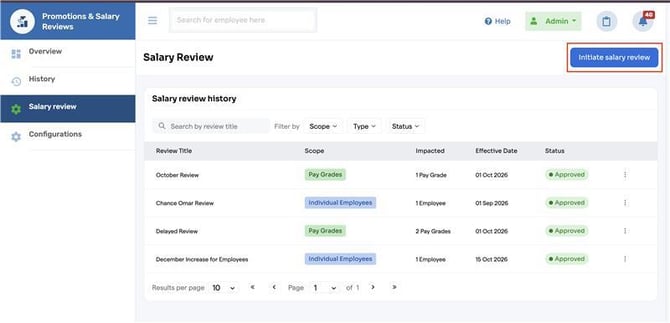
B. Initiate a Salary Review : From the Salary Review page, admins click “Initiate salary review” to start a new review
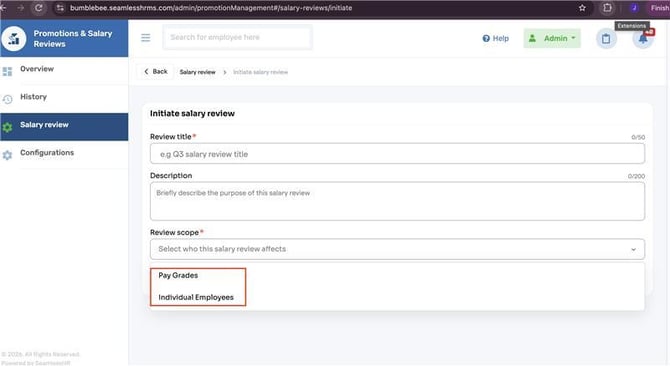
C. Fill in Review Details: Admins provide a Review Title (up to 50 characters), an optional Description (up to 200 characters), and select the Review Scope. There are two options for scope:
- Pay Grades. Applies the review to all employees under the selected pay grades
- Individual Employees. Applies the review to specific selected employees
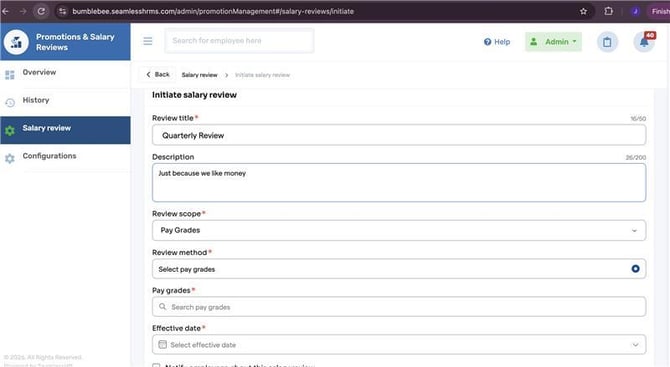
D. Select the Review Method: Depending on the scope selected, admins can either pick pay grades or employees directly or use Bulk Upload for larger reviews.
E. Apply the Salary Increase: For each selected pay grade or employee, admins select an Increase Type (Actual Amount or Percentage) and enter the Increase Value. The system then calculates the New Gross automatically, allowing admins to review the updated salary before proceeding.
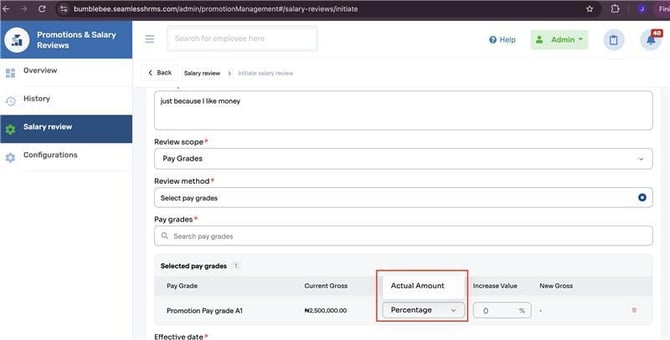
Increase Type dropdown showing Actual Amount and Percentage.
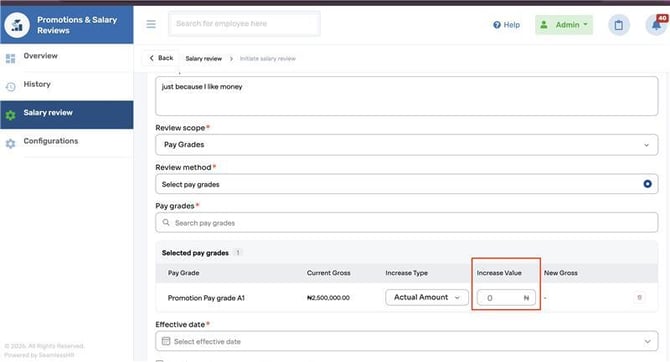
Increase Value field. New Gross is automatically calculated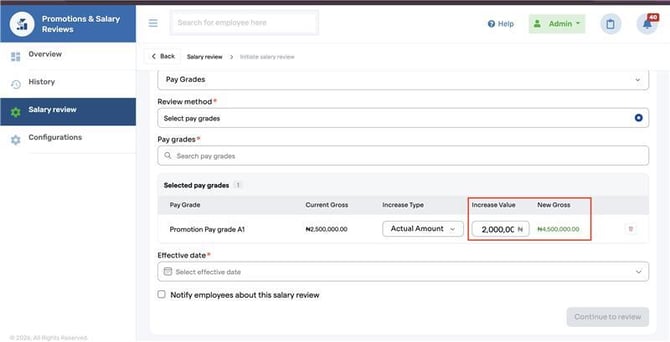
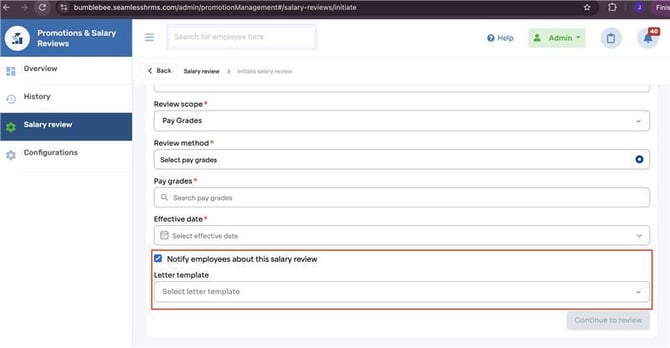
F. Notification Options: Admins can choose to notify employees. If notification is enabled, you can also select a letter template to send with the notification.
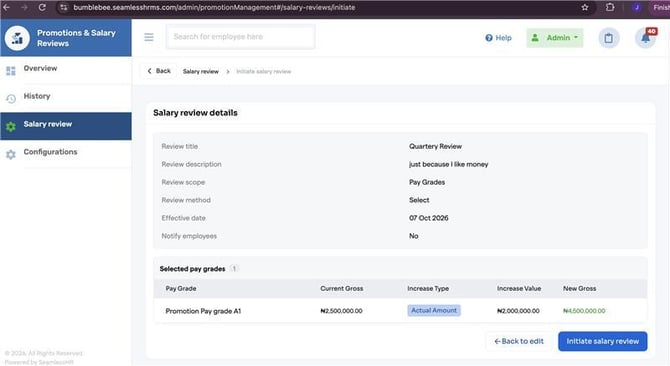
G. Review Summary Before Confirmation: Before initiating the salary review, you can check a summary of its title, description, scope, method, effective date, affected pay grades or employees, and notification settings. Use this summary to confirm that all details are correct before proceeding.
Salary review details summary page
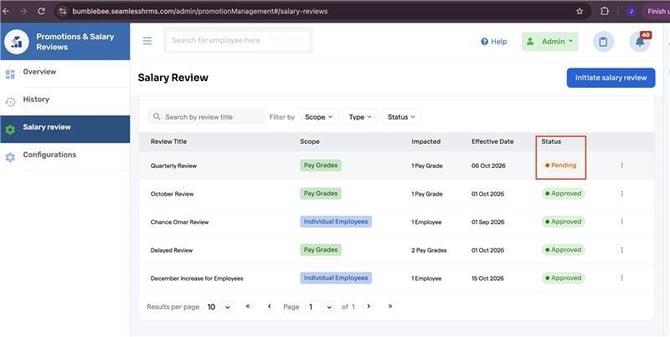
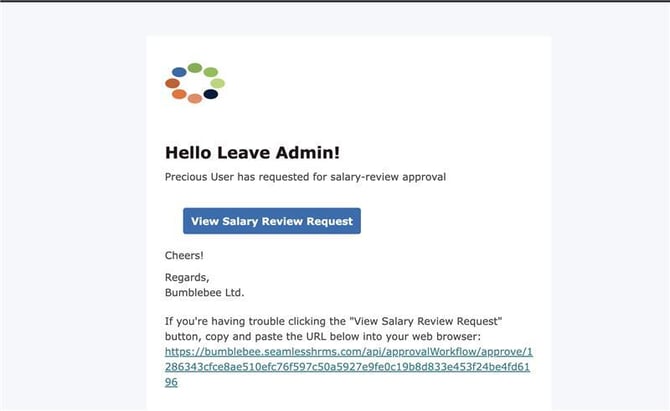
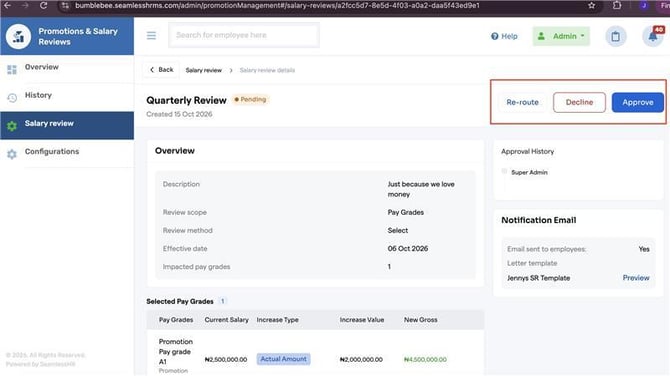
H. Approval Workflow: Once initiated, the review enters the configured approval workflow and shows up with a “Pending” status on the Salary Review history page. Approvers get an email notification prompting them to review and either Approve, Decline, or Re-route the request. They can also see the approval history and preview the notification email that will be sent to employees.
Pending status on Salary Review
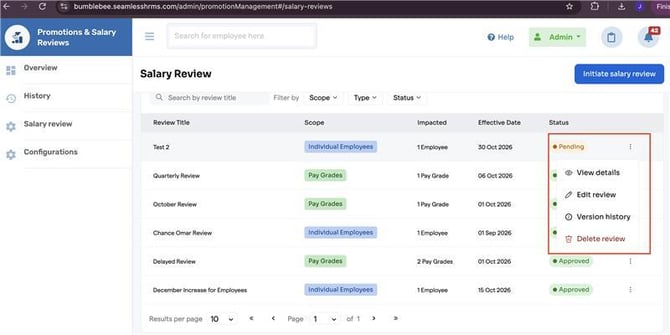
The Options dropdown on the Salary Review history page includes View details, Edit review, Version history, and Delete review.
Approver email notification
Approval detail page with Re-route, Decline, Approve buttons
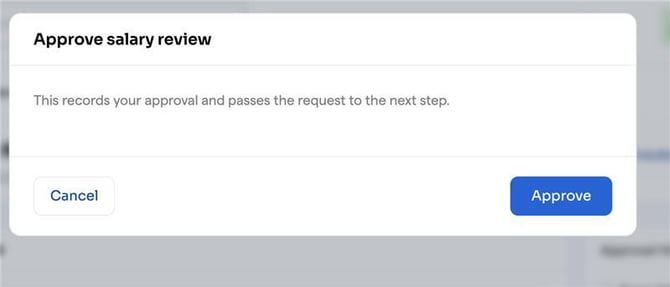
Approve confirmation modal
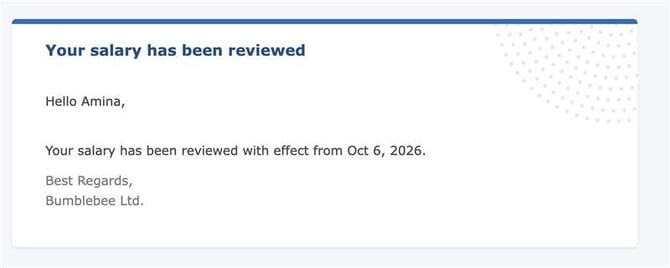
I. Employee Notification : Once the review is approved and the effective date is reached, impacted employees receive an email letting them know their salary has been reviewed, with the effective date clearly stated.
Employee notification email
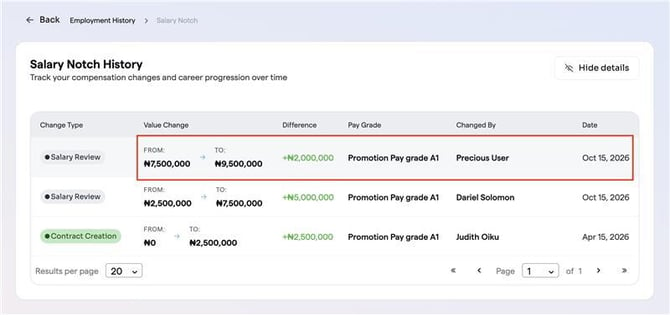
J. Visibility on Salary Notch History: Employees can also see their updated compensation reflected in their Salary Notch history on ESS, including the change type (Salary Review), the value change (from and to), the difference, pay grade, who made the change, and the date it took effect.
Salary Notch History on ESS
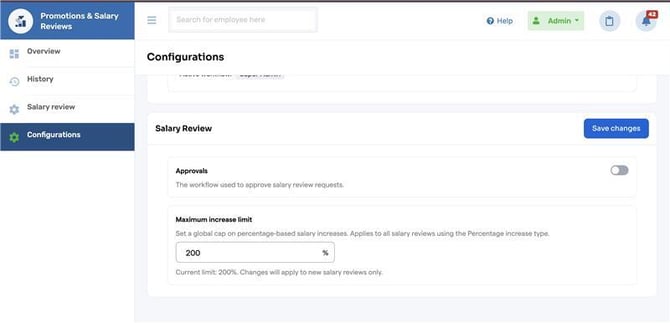
K. Configurations Page : Admins can turn the Approvals workflow on or off and set a Maximum Increase Limit (a global cap) for percentage-based salary increases.
Configurations page showing Approvals toggle and Maximum increase limit
Why It Matters
Previously, updating salaries meant exporting HRIS data, editing spreadsheets, and re-uploading files—a time-consuming process that increased the risk of payroll errors and made review history and employee communication difficult to manage.
Salary reviews now happen entirely within the system. Admins can review pay grades or individual employees, apply percentage or actual amount increases, manage exemptions, and preview changes before submitting them through the approval workflow, when enabled. Employees can receive notifications and view compensation changes in their Salary Notch history.
This approach saves administrative time, improves transparency, and helps reduce errors that could lead to payroll disputes.
- Available To: All Admins managing salary reviews and all Employees impacted by them
Important Notes:
- Salary reviews can be done at the Holding Co or subsidiary level. Each subsidiary operates independently with its own salary review history
- Admins can edit or delete salary reviews whose effective date is still in the future AND whose status is still pending. Once a review has been approved, or if the approval workflow is turned off (meaning reviews go through without approval), it can no longer be edited or deleted, even if the effective date is still in the future
- Admins can view the full version history of each salary review, showing who made what changes and when
- The notification email to employees is only sent when the “Notify employees about this salary review” checkbox is checked during initiation
- Salary Notch history will automatically reflect any approved salary review once the effective date is reached
- Admins can configure a Maximum Increase Limit for percentage-based salary increases from the Configurations page. This acts as a global cap that applies to all salary reviews using the Percentage increase type
- The Approvals workflow for salary reviews can also be toggled on or off from the Configurations page