![Logo-1.png]](https://support.seamlesshr.com/hs-fs/hubfs/Logo-1.png?height=25&name=Logo-1.png)
Overview
The Breeze Mobile App (Available on both Playstore and App store) provides employees with quick access to essential work activities, including attendance, leave, payslips, benefits, celebrations, and workplace support. The app also includes Samira, your AI-powered assistant that allows employees to ask questions and complete supported activities through conversation.
Mobile App Navigation
1. Open the Play Store on Android or the App Store on iOS.

2. Search for Breeze, then download and install the app.
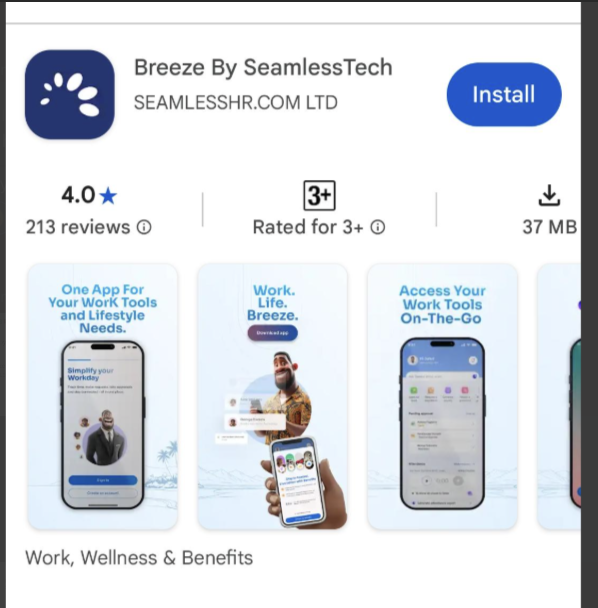
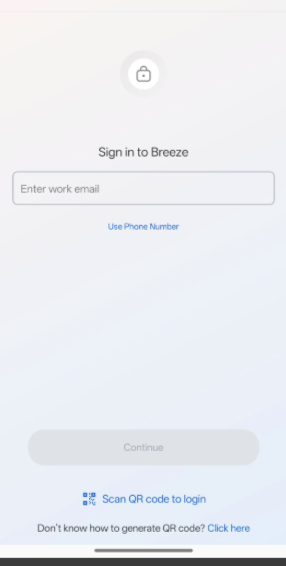
3. Log in to your account using your email address or phone number, then select Continue.
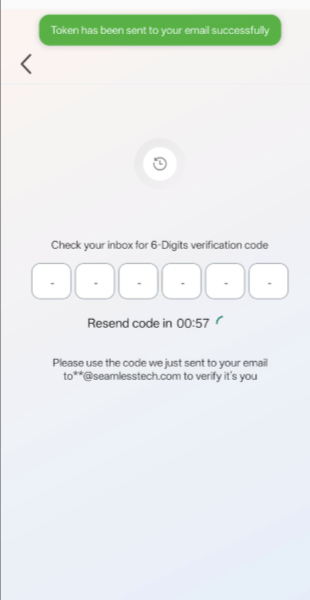
4. Enter the OTP sent to your email address or phone number, then select Continue.
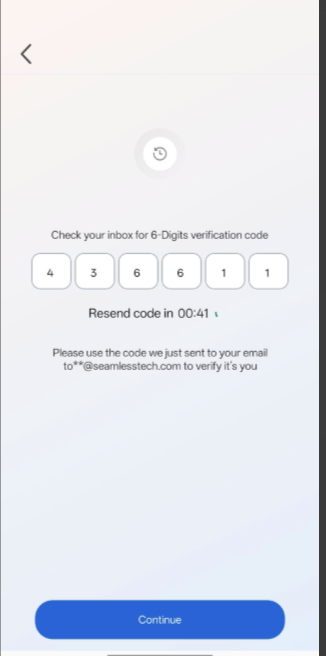
5. Create your password to ensure secure access to your account.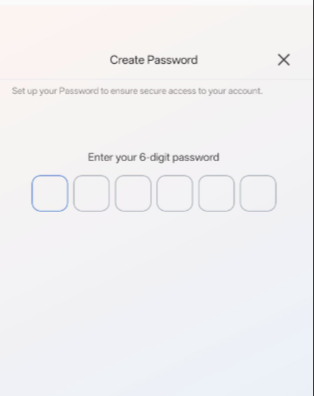
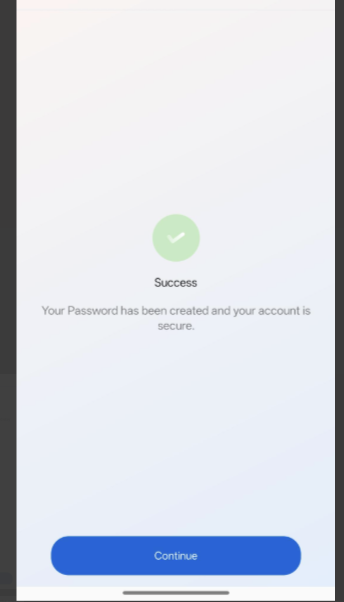
6. You will receive a confirmation prompt that your password has been created successfully. Select Continue to proceed.
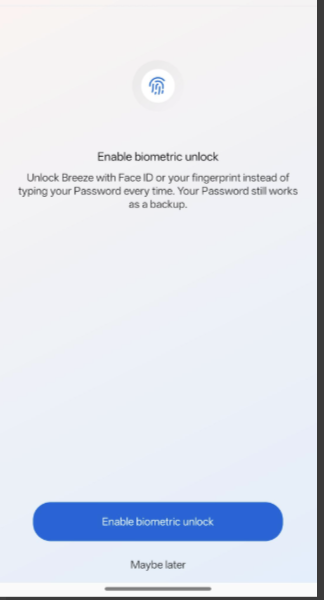
7. You can also enable biometric authentication to unlock the app using Face ID or your fingerprint.
After signing in, the app provides five main sections:
- Home
- Work
- Samira
- Benefits
- Profile
1. Home
The Home page provides a summary of important employee information and activities.From the Home page, employees can:- Access Samira by selecting the Ask Samira anything field.
- Share their current mood or feeling.
- View celebrations such as birthdays and work anniversaries.
- Access relevant employee updates and quick actions.
-3.jpeg?width=371&height=766&name=Image%20(1)-3.jpeg)
2. Work
The Work section provides access to work-related activities. This section include:- Time Management
- View shifts left for the week.
- View total hours worked.
- View days absent.
- View upcoming shifts.
- View recent attendance-related information.
- Access attendance records and penalties.
- Leave
- View available leave types and balances.
- Apply for available leave.
- View previous leave requests under Request History.
- Payslip
- Select a pay period.
- Generate and view the corresponding payslip.
- Open the payslip document for detailed information.
- Utilities
- Access supported services such as electricity payments.
- Select a service provider, product type, and provide the required information.
- Report a Grievance
- Select a grievance type.
- Enter the subject and description.
- Submit the grievance.
-1.jpeg?width=341&height=653&name=Image%20(2)-1.jpeg)
3. Samira
Samira is the AI assistant available on the platform. Employees can use Samira to ask questions, obtain information without the risk of data breach, and complete supported work-related actionsFor example, an employee can ask Samira to apply for leave.Example: Applying for Leave Through Samira
- Open Samira from the bottom navigation.
- Enter a request, such as "I want to apply for leave."
- Samira displays the available leave policies.
- Select or provide the type of leave required.
- Provide the requested information, such as:
- Start date
- Resumption date
- Reason for the leave
- Review the leave details provided by Samira.
- Confirm that the information is correct.
- Confirm the submission when prompted.
-2.jpeg?width=425&height=810&name=Image%20(3)-2.jpeg)
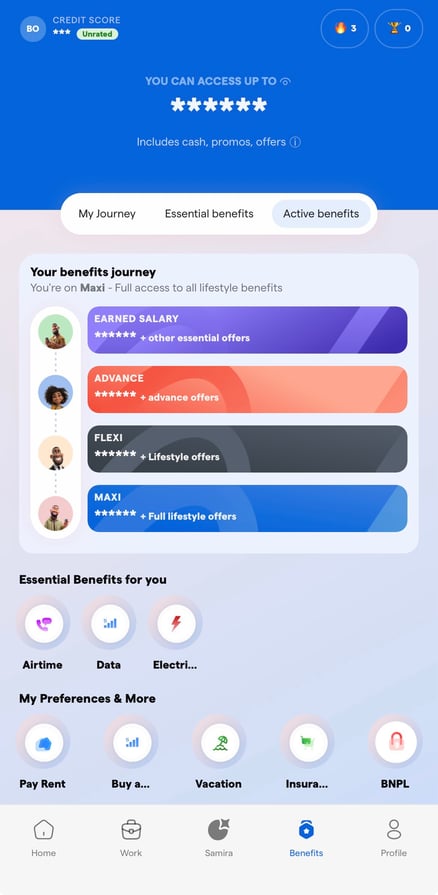
4. Benefits
The Benefits section provides access to available employee financial and lifestyle benefits.Employees can view:- My Journey – the benefits available across the employee's benefits journey.
- Essential Benefits – available essential employee benefits.
- Active Benefits – benefits currently active for the employee.
5. Profile
The Profile section provides access to the employee's personal and account information. Use this section to view or manage profile-related information available to the employee.Additional Mobile App FeaturesCelebrations
Employees can access celebrations such as:- Birthdays
- Work anniversaries
- Today
- Next five days
- This week
- This month
Employees can also search for colleagues and view upcoming or past celebrations.
Attendance Records
The Attendance Records page provides an overview of attendance information, including:- Total hours worked
- Penalties received
- Days absent
- Days late
| Section | Main Functions |
| Home | Dashboard, mood, celebrations, quick access to Samira |
| Work | Time management, leave, payslips, utilities, grievances |
| Samira | AI-assisted HR questions and supported HR requests |
| Benefits | Employee benefits and benefits journey |
| Profile | Employee profile and account information |
- Ensure you are logged in with your authorized employee account.
- Review information carefully before submitting requests.
- When using Samira, provide the information requested by the assistant to complete the process.
- For transactions or requests involving dates, amounts, or personal information, confirm the details before submission.
Frequently Asked Questions
- What can I do on the SeamlessHR Mobile App? You can access work-related services such as leave, attendance, payslips, benefits, celebrations, grievances, and supported employee services.
- Where can I apply for leave? You can apply for leave from Work > Leave or use Samira to initiate a supported leave request.
- How can I view my payslip? Go to Work > Payslip, select the required pay period, and select View Payslip.
- How can I check my attendance? Go to Work > Time Management or access Attendance Records to view available attendance information.
- What is Samira used for? Samira is your AI assistant that helps employees find information and complete supported HR activities through a conversational interface.